NotificationsNotifications
Trang Notifications (Thông báo) dùng để gửi thông báo và cấu hình gửi tự động tới user (in-app). User nhận thông báo trong app/website — ví dụ qua Widget — khi bạn gửi thủ công hoặc khi hệ thống tự gửi theo sự kiện (cộng điểm, nâng hạng, đổi thưởng). Thuộc module Client Admin.
Trang có ba tab: Send (gửi thủ công từng thông báo), Channels (bật/tắt kênh In-App để gửi tự động), Auto-Templates (mẫu thông báo tự động).
Ai sử dụng
Dùng bởi Client Admin (quản trị tenant) sau khi đăng nhập — để gửi thông báo khuyến mãi, thông báo hệ thống, hoặc bật/tắt thông báo tự động cho user.
Tab Send (Gửi)
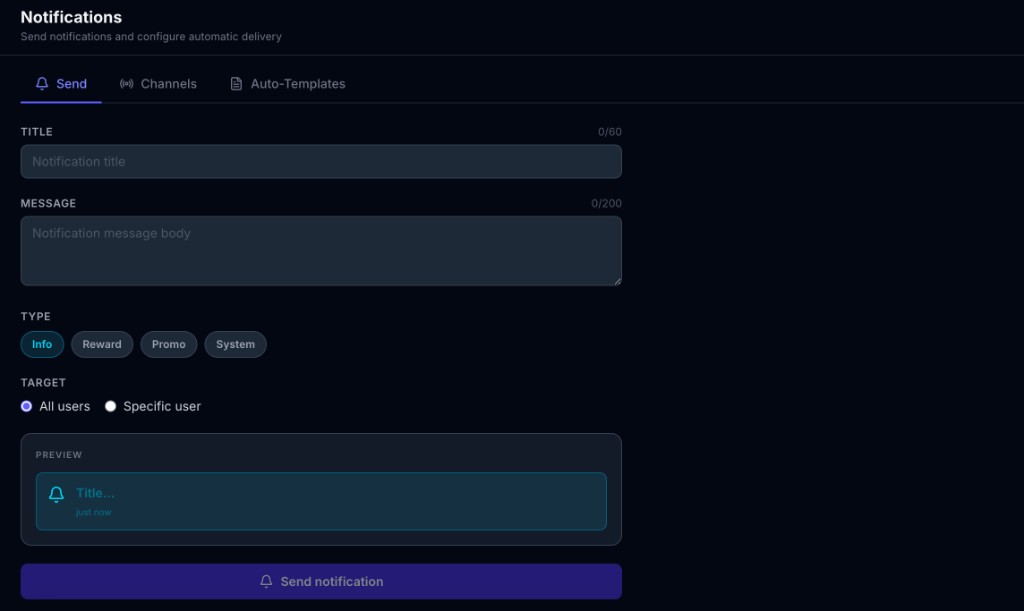
Gửi một thông báo ngay lập tức tới tất cả user hoặc một user cụ thể. Form gồm:
| Field | Mô tả |
|---|---|
| TITLE | Tiêu đề thông báo. Bắt buộc. Giới hạn 60 ký tự (hiển thị bộ đếm 0/60). |
| MESSAGE | Nội dung tin nhắn. Bắt buộc. Giới hạn 200 ký tự (hiển thị bộ đếm 0/200). |
| TYPE | Loại thông báo: Info (thông tin), Reward (phần thưởng), Promo (khuyến mãi), System (hệ thống). Ảnh hưởng cách hiển thị/phân loại cho user. |
| TARGET | All users — gửi tới mọi user trong tenant; hoặc Specific user — nhập User ID (external_id hoặc ID nội bộ) để gửi tới một user. |
| PREVIEW | Khung xem trước: mô phỏng thông báo sẽ hiển thị thế nào với user (biểu tượng chuông, tiêu đề, thời gian “just now”). |
Sau khi điền xong, bấm nút Send notification (Gửi thông báo) để gửi.
Tab Send — form gửi thông báo thủ công. / Send tab — manual notification form.
Tab Channels (Kênh)
Bật hoặc tắt kênh In-App. Khi bật, hệ thống tự gửi thông báo tới user khi có sự kiện như: cộng điểm, nâng hạng (tier upgrade), đạt achievement, đổi thưởng. Khi tắt, user không nhận các thông báo tự động này.
Tab Auto-Templates (Mẫu tự động)
Cấu hình mẫu thông báo tự động — nội dung và điều kiện gửi khi có sự kiện (vd. template khi user đạt điểm, khi lên tier). Chi tiết tùy phiên bản Client Admin.
Luồng thao tác
Vào sidebar Client Admin → Notifications. (1) Tab Send: nhập Title, Message, chọn Type và Target, xem Preview → bấm Send notification. (2) Tab Channels: bật/tắt In-App. (3) Tab Auto-Templates: chỉnh mẫu nếu cần. Liên quan: Users, Event Logs, Widget (user xem in-app trên widget).
Tóm tắt field
- Gửi thủ công (Send): Title (bắt buộc, tối đa 60 ký tự), Message (bắt buộc, tối đa 200 ký tự), Type (Info / Reward / Promo / System), Target (All users hoặc Specific user).
- Channels: In-App — bật/tắt thông báo tự động (points, tier upgrade, achievements, redemption).
The Notifications page is used to send notifications and configure automatic delivery to users (in-app). Users see notifications in the app or website — e.g. in the Widget — when you send manually or when the system sends automatically on events (points earned, tier upgrade, redemption). Part of Client Admin.
The page has three tabs: Send (send a single notification manually), Channels (enable/disable In-App channel for automatic delivery), Auto-Templates (templates for automatic notifications).
Who uses it
Used by Client Admin (tenant administrator) after login — to send promo or system notifications, or to enable/disable automatic notifications for users.
Tab Send
Send one notification immediately to all users or to a specific user. The form includes:
| Field | Description |
|---|---|
| TITLE | Notification title. Required. Limit 60 characters (counter 0/60). |
| MESSAGE | Message body. Required. Limit 200 characters (counter 0/200). |
| TYPE | Notification type: Info, Reward, Promo, System. Affects how it is displayed/categorized for users. |
| TARGET | All users — send to every user in the tenant; or Specific user — enter User ID (external_id or internal ID) to send to one user. |
| PREVIEW | Preview area: shows how the notification will look to the user (bell icon, title, time “just now”). |
When done, click Send notification to send.
Send tab — manual notification form.
Tab Channels
Enable or disable the In-App channel. When enabled, the system automatically sends notifications to users on events such as: points earned, tier upgrade, achievement unlocked, redemption. When disabled, users do not receive these automatic notifications.
Tab Auto-Templates
Configure automatic notification templates — content and conditions for sending on events (e.g. template when user earns points, when tier upgrades). Details depend on Client Admin version.
How to use
Go to Client Admin sidebar → Notifications. (1) Tab Send: enter Title, Message, select Type and Target, check Preview → click Send notification. (2) Tab Channels: enable/disable In-App. (3) Tab Auto-Templates: edit templates if needed. Related: Users, Event Logs, Widget (users see in-app notifications in the widget).
Field summary
- Send (manual): Title (required, max 60 chars), Message (required, max 200 chars), Type (Info / Reward / Promo / System), Target (All users or Specific user).
- Channels: In-App — enable/disable automatic notifications (points, tier upgrade, achievements, redemption).